
Jump to content

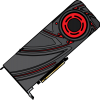
So I just got my R9-290 and it just runs so hot. It runs at its base clock of 662 or something like that with 70% fan speed. I thought that this was not acceptable so I opened up the card and cleared off the horrid thermal paste job and changed it to arctic mx-2. I put it all back together and ran a stress test and it can hold 947 mhz at only 55% fan speed. After the stress test I noticed that my windows on the desktop have little tiny green 1 pixel artifacts flashing all over them. What I want to know is if I somehow broke the card during the process of just changing the thermal compound. Note it is non conductive.

Hope somebody can help :(

Link to comment
https://linustechtips.com/topic/85554-help-r9-290-artifacts/
Share on other sites

Link to post
Share on other sites

I think your vram is a little to fast. At least, I get "green pixel artifacts" in Unigine Heaven when my clocks are too high for the set voltage.

Intel i5 6600k~Asus Maximus VIII Hero~G.Skill Ripjaws 4 Series 8GB DDR4-3200 CL-16~Sapphire Radeon R9 Fury Tri-X~Phanteks Enthoo Pro M~Sandisk Extreme Pro 480GB~SeaSonic Snow Silent 750~BenQ XL2730Z QHD 144Hz FreeSync~Cooler Master Seidon 240M~Varmilo VA87M (Cherry MX Brown)~Corsair Vengeance M95~Oppo PM-3~Windows 10 Pro~http://pcpartpicker.com/p/ynmBnQ

Link to comment
https://linustechtips.com/topic/85554-help-r9-290-artifacts/#findComment-1162895
Share on other sites

Link to post
Share on other sites

Thermal pads can slip out if they don't make perfect contact. you might want to reensure that the thermal pad makes contact with both the RAM and the cooler.

If you mount a waterblock you usually carefully shake it and peek inside to make sure the pads stay where they're supposed to be.

Frost upon these cigarettes.... lipstick on the window pane...

Link to comment
https://linustechtips.com/topic/85554-help-r9-290-artifacts/#findComment-1162903
Share on other sites

Link to post
Share on other sites

It is running at stock speeds and it only does when it is NOT under a 3d load.

Have you turned power savings off?


edit: I'd also check the pads.

Intel i5 6600k~Asus Maximus VIII Hero~G.Skill Ripjaws 4 Series 8GB DDR4-3200 CL-16~Sapphire Radeon R9 Fury Tri-X~Phanteks Enthoo Pro M~Sandisk Extreme Pro 480GB~SeaSonic Snow Silent 750~BenQ XL2730Z QHD 144Hz FreeSync~Cooler Master Seidon 240M~Varmilo VA87M (Cherry MX Brown)~Corsair Vengeance M95~Oppo PM-3~Windows 10 Pro~http://pcpartpicker.com/p/ynmBnQ

Link to comment
https://linustechtips.com/topic/85554-help-r9-290-artifacts/#findComment-1162904
Share on other sites

Link to post
Share on other sites

Thermal pads can slip out if they don't make perfect contact. you might want to reensure that the thermal pad makes contact with both the RAM and the cooler.

If you mount a waterblock you usually carefully shake it and peek inside to make sure the pads stay where they're supposed to be.


I am in the process of taking the card back  apart to check everything.

Have you turned power savings off?


edit: I'd also check the pads.

And I am not sure how you do that. Is it the thing where it stays at its 3d clocks?

Link to comment
https://linustechtips.com/topic/85554-help-r9-290-artifacts/#findComment-1162919
Share on other sites

Link to post
Share on other sites

And I am not sure how you do that. Is it the thing where it stays at its 3d clocks?

[spoiler=Taken from http://www.overclock.net/t/1436497/official-amd-r9-290x-290-owners-club]Assumes you have no instance of AB, aka afterburner installed previously. If you do have AB installed previously, uninstall it or delete the folder. Also, it is generally a good idea to uninstall AB before any new driver install when you are crossfired. AB will automatically run, even when run at windows start is disabled, and when it does and it tries to fool with clocks you will BSOD with a 07E code.**

Run afterburner install. At this point, if you choose default install directory, there will incur security issues later on, just keep that in mind. I would recommend you install it in another folder/drive.

After install completes, do not check the option to start afterburner. If you are crossfired follow A- below to disable ULPS if you are using Unofficial Overclock Method (UOM) or , you can skip this portion if you are using Official Overclock Method (-xcl), however be warned that Afterburner will not be able to see your sleeping cards if you have ULPS enabled. Thus it's probably a good idea to disable ULPS anyways.

A- Disabling ULPS

Open regedit and go to:

HKEY_LOCAL_MACHINE\SYSTEM\CurrentControlSet\Control\Class\{4D36E968-E325-11CE-BFC1-08002BE10318}

This key 4D36E968, under CurrentControlSet is the only folder you need to access. You can ignore the others, so don't search for it just traverse directly to said folder. It's time to disable ULPS, or ultra low power savings. Inside the folder you will find more folders, 0000/0001/0002/etc so on and on.

Open each folder and double click on EnableULPS and change to 0. You do not need to change any other key, or any keys that look similar, just change EnableULPS. Close regedit. End of A-

At this point if you installed into default directory, you will have a security issue. Open file manager, go to where you installed afterburner and right click on MSIAfterburner.cfg and go to security, click edit, add yourself and give yourself full control, click ok.

Now go back and open MSIAfterburner.cfg in notepad.

Scroll to bottom and change this:

[ATIADLHAL]

UnofficialOverclockingEULA =

UnofficialOverclockingMode= 0

to this:

[ATIADLHAL]

UnofficialOverclockingEULA = I confirm that I am aware of unofficial overclocking limitations and fully understand that MSI will not provide me any support on it

UnofficialOverclockingMode= 1

**Note on the mode setting. Some new games are causing clock conflicts with Powerplay creating flickering on the desktop. You can avoid this by choosing 2, instead of 1. I am running with Powerplay off. Look Mom, no flickering. Refer to the bottom of Post 2 (in source 'The AMD How To Thread" ) for more info on this.**

Close and save MSIAfterburner.cfg. At this point download the file from the link above for AMD Clock Control files and run it. Do not reboot.

Now you can run afterburner for the first time. Afterburner will analyze the gpu asic and ask to reboot when ready. Choose yes to reboot. After reboot, you will have afterburner installed, you can then unlock voltage control and monitoring, etc. Happy overclocking.


But! If you have MSI Afterburner, you should be able to disable ULPS (Ultra Low Power State) through the settings.

Intel i5 6600k~Asus Maximus VIII Hero~G.Skill Ripjaws 4 Series 8GB DDR4-3200 CL-16~Sapphire Radeon R9 Fury Tri-X~Phanteks Enthoo Pro M~Sandisk Extreme Pro 480GB~SeaSonic Snow Silent 750~BenQ XL2730Z QHD 144Hz FreeSync~Cooler Master Seidon 240M~Varmilo VA87M (Cherry MX Brown)~Corsair Vengeance M95~Oppo PM-3~Windows 10 Pro~http://pcpartpicker.com/p/ynmBnQ

Link to comment
https://linustechtips.com/topic/85554-help-r9-290-artifacts/#findComment-1163103
Share on other sites

Link to post
Share on other sites

removing the heatsink voids the warranty. you probably didnt put back the memory thermal pads correctly.


I think your vram is a little to fast. At least, I get "green pixel artifacts" in Unigine Heaven when my clocks are too high for the set voltage.


Thermal pads can slip out if they don't make perfect contact. you might want to reensure that the thermal pad makes contact with both the RAM and the cooler.

If you mount a waterblock you usually carefully shake it and peek inside to make sure the pads stay where they're supposed to be.


Do any of you know if the r9-290 stock thermal compound is conductive ? I just found a tiny bit of it on what i think are capacitors around the chip and I can not get it off.

Link to comment
https://linustechtips.com/topic/85554-help-r9-290-artifacts/#findComment-1163112
Share on other sites

Link to post
Share on other sites

Do any of you know if the r9-290 stock thermal compound is conductive ? I just found a tiny bit of it on what i think are capacitors around the chip and I can not get it off.


Don't know. Probably not dangerously conductive [every TIM is conductive to a certain degree -> No conductivity = no heat transfer ;P]. When I wiped it off my 290x it seemed like the non conductive ones judging from the look. But I don't know for sure.

Have you tried a Q-tip + alcohol?

Frost upon these cigarettes.... lipstick on the window pane...

Link to comment
https://linustechtips.com/topic/85554-help-r9-290-artifacts/#findComment-1163123
Share on other sites

Link to post
Share on other sites

Don't know. Probably not dangerously conductive [every TIM is conductive to a certain degree -> No conductivity = no heat transfer ;P]. When I wiped it off my 290x it seemed like the non conductive ones judging from the look. But I don't know for sure.

Have you tried a Q-tip + alcohol?

Yes I have and it is not small enough to get in between those little things.

Link to comment
https://linustechtips.com/topic/85554-help-r9-290-artifacts/#findComment-1163129
Share on other sites

Link to post
Share on other sites

Yes I have and it is not small enough to get in between those little things.

The stock thermal compound seemed rather solid on mine, maybe try a toothpick [wood or plastic] ? Like to get it out. Had one little part stuck aswell, fingernail + toothpick did the trick ;) Touch your plugged in + turned off PSU before touching the card though.


Edit:


Compressed-air-can may help aswell. Don't think it'll do much if you can't get it out  but better safe than sry ^^

Frost upon these cigarettes.... lipstick on the window pane...

Link to comment
https://linustechtips.com/topic/85554-help-r9-290-artifacts/#findComment-1163146
Share on other sites

Link to post
Share on other sites

The stock thermal compound seemed rather solid on mine, maybe try a toothpick [wood or plastic] ? Like to get it out. Had one little part stuck aswell, fingernail + toothpick did the trick ;) Touch your plugged in + turned off PSU before touching the card though.


Edit:


Compressed-air-can may help aswell. Don't think it'll do much if you can't get it out  but better safe than sry ^^

Thanks for the tip I did not think of that and I always make sure I am grounded before I touch computer parts.

Link to comment
https://linustechtips.com/topic/85554-help-r9-290-artifacts/#findComment-1163154
Share on other sites

Link to post
Share on other sites

The stock thermal compound seemed rather solid on mine, maybe try a toothpick [wood or plastic] ? Like to get it out. Had one little part stuck aswell, fingernail + toothpick did the trick ;) Touch your plugged in + turned off PSU before touching the card though.


Edit:


Compressed-air-can may help aswell. Don't think it'll do much if you can't get it out  but better safe than sry ^^


[spoiler=Taken from http://www.overclock.net/t/1436497/official-amd-r9-290x-290-owners-club]Assumes you have no instance of AB, aka afterburner installed previously. If you do have AB installed previously, uninstall it or delete the folder. Also, it is generally a good idea to uninstall AB before any new driver install when you are crossfired. AB will automatically run, even when run at windows start is disabled, and when it does and it tries to fool with clocks you will BSOD with a 07E code.**

Run afterburner install. At this point, if you choose default install directory, there will incur security issues later on, just keep that in mind. I would recommend you install it in another folder/drive.

After install completes, do not check the option to start afterburner. If you are crossfired follow A- below to disable ULPS if you are using Unofficial Overclock Method (UOM) or , you can skip this portion if you are using Official Overclock Method (-xcl), however be warned that Afterburner will not be able to see your sleeping cards if you have ULPS enabled. Thus it's probably a good idea to disable ULPS anyways.

A- Disabling ULPS

Open regedit and go to:

HKEY_LOCAL_MACHINE\SYSTEM\CurrentControlSet\Control\Class\{4D36E968-E325-11CE-BFC1-08002BE10318}

This key 4D36E968, under CurrentControlSet is the only folder you need to access. You can ignore the others, so don't search for it just traverse directly to said folder. It's time to disable ULPS, or ultra low power savings. Inside the folder you will find more folders, 0000/0001/0002/etc so on and on.

Open each folder and double click on EnableULPS and change to 0. You do not need to change any other key, or any keys that look similar, just change EnableULPS. Close regedit. End of A-

At this point if you installed into default directory, you will have a security issue. Open file manager, go to where you installed afterburner and right click on MSIAfterburner.cfg and go to security, click edit, add yourself and give yourself full control, click ok.

Now go back and open MSIAfterburner.cfg in notepad.

Scroll to bottom and change this:

[ATIADLHAL]

UnofficialOverclockingEULA =

UnofficialOverclockingMode= 0

to this:

[ATIADLHAL]

UnofficialOverclockingEULA = I confirm that I am aware of unofficial overclocking limitations and fully understand that MSI will not provide me any support on it

UnofficialOverclockingMode= 1

**Note on the mode setting. Some new games are causing clock conflicts with Powerplay creating flickering on the desktop. You can avoid this by choosing 2, instead of 1. I am running with Powerplay off. Look Mom, no flickering. Refer to the bottom of Post 2 (in source 'The AMD How To Thread" ) for more info on this.**

Close and save MSIAfterburner.cfg. At this point download the file from the link above for AMD Clock Control files and run it. Do not reboot.

Now you can run afterburner for the first time. Afterburner will analyze the gpu asic and ask to reboot when ready. Choose yes to reboot. After reboot, you will have afterburner installed, you can then unlock voltage control and monitoring, etc. Happy overclocking.


But! If you have MSI Afterburner, you should be able to disable ULPS (Ultra Low Power State) through the settings.


Thanks guys for all the help. I just put the card back into my system and it works great. A few of the memory pads were loose so i pushed them down and cleaned the gpu really good and reapplied the thermal paste. It works great now. :)

Link to comment
https://linustechtips.com/topic/85554-help-r9-290-artifacts/#findComment-1163416
Share on other sites

Link to post
Share on other sites

Create an account or sign in to comment

You need to be a member in order to leave a comment

Create an account

Sign up for a new account in our community. It's easy!

Register a new account

Sign in

Already have an account? Sign in here.

Sign In Now

×




