Jump to content

Troubleshooting multiple display setup

Go to solution Solved by UnusualDevices,

This? yeah try this

To Clear and Reset External Display Cache in Windows 10,

  1. Open the Registry Editor app.
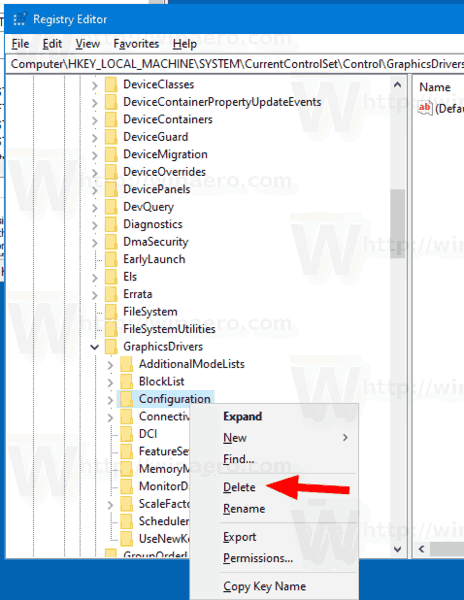
  2. Go to the following Registry key: HKEY_LOCAL_MACHINE\SYSTEM\CurrentControlSet\Control\GraphicsDrivers\
    See how to go to a Registry key with one click.
  3. Right-click on the subkey Configuration and select Delete from the context menu.Windows 10 Clear Reset Display Cache
  4. Now, delete two other subkeys, Connectivity and ScaleFactors.
  5. Restart Windows 10 to make the changes done by the Registry tweak take effect.
I need help to get my LG C9 TV working with my PC.


GPU 3060 TI

Latest drivers installed


Current monitors:

- Dell S3220DGF (1440p 164hz, connected via DP)

- Dell S3221QS (4K 60hz, connected via DP)


Trying to get working: LG C9 connected by HDMI 2.1


I've tried mucking around with resolution settings/frame rate and other things in the Nvidia control panel without success. It is detected by the computer but would just show "no signal" on the TV. To make matters worse, I tried deselecting my 2 standard monitors in "multiple display" setting on NVIDIA control panel expecting if it doesn't work it'll auto-revert setting but for whatever reason it did not and so now I can no longer trouble shoot the TV because as soon as I plug in the TV, my 2 monitors will stop displaying and I still won't see anything on the TV either... I don't have a 3rd monitor to use to either.


any help would be appreciated on how to fix the nvidia control panel settings + getting the TV to work.

Link to comment
https://linustechtips.com/topic/1467239-troubleshooting-multiple-display-setup/
Share on other sites

Link to post
Share on other sites

the HDMI input has the PC icon after setting change as suggested.


I've tried other devices on that HDMI port - works, including my laptop using the same HDMI cable. Same is reproducible on the other HDMI inputs.


c9 is up to date with firmware


idk if it makes a difference but bios is also up to date

Link to post
Share on other sites

okay I've given it a go, uninstalled twice in safe mode offline, then reinstalled latest driver. still no good 😞


I would be able to do so much more if I could just re-enable my 2 main monitors to display at the very least when the C9 is plugged in. Any idea how to reset that? I've read something about resetting registries that save multiple display settings when things are plugged in?

Link to post
Share on other sites

This? yeah try this

To Clear and Reset External Display Cache in Windows 10,

  1. Open the Registry Editor app.
  2. Go to the following Registry key: HKEY_LOCAL_MACHINE\SYSTEM\CurrentControlSet\Control\GraphicsDrivers\
    See how to go to a Registry key with one click.
  3. Right-click on the subkey Configuration and select Delete from the context menu.Windows 10 Clear Reset Display Cache
  4. Now, delete two other subkeys, Connectivity and ScaleFactors.
  5. Restart Windows 10 to make the changes done by the Registry tweak take effect.

Link to post
Share on other sites

Thanks for that.


It seems I'm able to get 1440p 120hz running on the TV, but once I set it to 4k 120 (or even lower refresh rate) the TV will blank out with "no signal" again. I'm not sure how to verify my HDMI cable standard but it's meant to support 2.1. I bought it from an office IT supplier store, not some dodgy ebay seller. On the cable it's labelled "AWM 20276 style VW-1 high speed HDMI with ethernet"

Link to post
Share on other sites

Create an account or sign in to comment

You need to be a member in order to leave a comment

Create an account

Sign up for a new account in our community. It's easy!

Register a new account

Sign in

Already have an account? Sign in here.

Sign In Now

×